The Playexch App: Mobile Access, Login & APK Safety
Everything you need to use Playexch on a phone the smart way — a browser-first app experience, a home-screen shortcut on Android and iPhone, the honest truth about APK downloads, and how to log in and stay secure on the go. 18+ only, play responsibly.
18+ only. Play responsibly. Terms & Conditions apply.
Using Playexch as an App on Your Phone
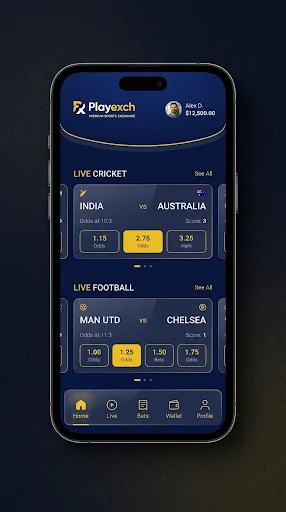
Most people who search for a Playexch app simply want the fastest, safest way to reach their account from a phone. The good news is that you do not need to hunt for a mysterious download to get a real app-like experience. The official Playexch mobile site is built to work like an app straight out of your browser — it loads quickly, fills the screen, remembers your session, and can be pinned to your home screen so it opens with one tap, exactly like an installed app icon.
This page focuses on one thing: getting Playexch onto your phone the right way. We cover the browser-first approach, how to add a home-screen shortcut on Android and iPhone, what an "APK" really is and how to check a source before you ever install anything, which permissions are normal and which are red flags, and how to keep your login and device secure. It is practical and mobile-specific — 18+ only, and always follow the rules where you live.
Browser-First: The Easiest and Safest Way to Use the App
Before you download anything, try the simplest option: open the official Playexch site in your phone's browser. This browser-first approach is the method we recommend to the widest number of users, and for good reasons. There is nothing to install, nothing to update manually, and no file from an unknown source sitting on your device. You always land on the newest version of the site because the browser loads it fresh, so you never fall behind on features or fixes the way an old installed file can.
A modern mobile browser — Chrome on Android, Safari on iPhone — already gives you almost everything an installed app would. The Playexch mobile site is responsive, which means the layout, buttons, and market cards resize to fit your screen. Live prices update in place, menus collapse into tidy taps, and the whole thing runs inside the sandbox your browser provides. That sandbox is a real security benefit: a website simply cannot reach as deeply into your phone as an installed application can. For the majority of users, the browser is the app, and it is the version we point people to first.
The only piece the browser does not give you by default is a one-tap icon on your home screen. That is easy to add, and the next two sections show you exactly how on both Android and iPhone. Once it is pinned, the experience feels identical to opening an installed app.
🌐 Nothing to install
Open the official site in Chrome or Safari and you are in. No file, no APK, no waiting.
🔄 Always up to date
The browser loads the latest Playexch site every time, so you never run an outdated build.
🛡️ Safer by design
A website runs in the browser sandbox and cannot reach into your phone the way an installed app can.
Add Playexch to Your Home Screen on Android (Chrome)
Turning the mobile site into a home-screen icon on Android takes about ten seconds and gives you the one-tap app feel without installing an APK. Once it is done, a Playexch icon sits on your home screen and opens the site full-screen, usually without the browser address bar getting in the way.
- Open Chrome and go to the official Playexch site. Make sure you are on the correct address before you continue.
- Tap the three-dot menu in the top-right corner of Chrome.
- Choose "Add to Home screen" (on some phones it reads "Install app").
- Confirm the name and tap Add. Chrome may let you drag the icon into place or add it automatically.
- Find the new icon on your home screen and tap it — Playexch now opens like an app.
This shortcut is just a smart bookmark that launches the site in a clean, app-style window. It uses no extra storage worth mentioning, it cannot demand risky permissions, and you can remove it any time by long-pressing the icon and dragging it to remove. If you ever change phones, you simply repeat these steps — there is no account tied to the icon itself, only to your Playexch login.
Add Playexch to Your Home Screen on iPhone (Safari)
On iPhone the process is just as quick, and it must be done in Safari — the "Add to Home Screen" option lives in Safari's share menu and is not offered in the same way by other iOS browsers. After you add it, a Playexch icon appears on your home screen and opens the site in its own full-screen window.
- Open Safari and visit the official Playexch site. Check the address carefully.
- Tap the Share button — the square with an upward arrow at the bottom of the screen.
- Scroll down and tap "Add to Home Screen."
- Edit the name if you wish, then tap Add in the top-right corner.
- Open the new icon from your home screen — Playexch launches like an installed app.
As on Android, this is a lightweight shortcut, not a downloaded program. It carries none of the risks of installing an unknown file, and it keeps you on the genuine site every time you tap it. If Safari ever updates and the menu looks slightly different, the option is still inside the same Share sheet — just scroll through the list until you see it.
📲 One-tap launch
The home-screen icon opens Playexch full-screen, exactly like an installed app.
🪶 Barely any storage
A shortcut is essentially a bookmark. It uses next to no space and never bloats over time.
🔒 No scary permissions
A pinned site cannot ask for contacts, SMS, or files the way a real app install can.
🗑️ Easy to remove
Long-press the icon and delete it any time. Your account is untouched.
The Truth About a Playexch "APK" Download
Search for a Playexch app and you will eventually see the word APK. An APK is simply the installer file format for Android apps — the same kind of package the Play Store uses behind the scenes. Installing one from outside the Play Store is called "sideloading," and it is where a lot of people get into trouble, because an APK from a random website can be tampered with, out of date, or an outright fake wearing a familiar name and logo.
Here is the honest position: for most users, you do not need an APK at all. The browser-first method plus a home-screen shortcut gives you the full mobile experience with none of the sideloading risk. If you ever do consider installing an Android package, treat it with real caution. A fake app can look pixel-perfect while quietly asking for permissions it has no business needing, harvesting what you type, or pushing you to a copycat login page designed to steal your details. The convenience is never worth handing your account or your phone to an unknown file.
If an APK is ever officially offered, it should come only from a source Playexch itself points you to — never from a pop-up ad, a forwarded link, a comment section, or a "download button" on a page you do not recognise. When in doubt, close the tab and use the browser version. The safest install is the one you did not have to make.
How to Check a Download Source Before You Install Anything
If you decide to install any Android file, slow down and run through a short checklist first. These are the same habits security-minded people use for every sideloaded app, not just for Playexch, and they take a minute at most.
- Confirm the link came from an official channel. A file recommended by the genuine Playexch support channel or the official site is very different from one you found through an ad or a stranger's message.
- Check the exact web address, character by character. Fakes rely on look-alike domains with extra words, hyphens, or swapped letters. If anything is off, stop.
- Be suspicious of urgency. "Download now or lose access," countdown timers, and "official app — limited" banners are classic pressure tactics used by fake pages.
- Look at what it asks for on install. A betting or exchange app has no reason to demand your contacts, SMS, call logs, or the ability to draw over other apps.
- When unsure, do not install. Use the browser version instead. You lose nothing by staying on the site.
No single check is magic, but together they filter out the overwhelming majority of bad files. The golden rule stays the same: if a download source cannot be traced back to something official, do not run it on the phone that holds your accounts.
🚩 Demands SMS or call logs
A mobile exchange app has no honest need to read your texts or call history. Walk away.
🚩 Wants "draw over apps"
This permission can place fake screens on top of real ones. A huge red flag for a betting app.
🚩 Asks to install more apps
Any file that wants permission to install further packages is a serious warning sign.
App Permissions: What Is Normal and What Is a Red Flag
If you use the Playexch site in a browser or as a home-screen shortcut, permissions are barely a concern — a website simply cannot reach most of your phone. The moment you install an app, though, permissions become the single most important thing to watch, because a granted permission is a door you have opened into your device.
Some requests are reasonable in the right context. A modern mobile app might legitimately use notifications so it can alert you, or storage access limited to saving an image you chose to download. What should make you stop cold are requests that have nothing to do with placing a bet or reading a market: access to your contacts, your SMS messages, your call logs, your microphone, your precise location at all times, or the ability to draw over other apps and install additional packages. None of those are needed to show you odds and take a stake.
A trustworthy app asks for the minimum it needs and explains why. A malicious one asks for everything and hopes you tap "Allow" without reading. On Android you can review and revoke permissions any time in Settings, and if an app misbehaves the safest move is to uninstall it immediately, then change any password you may have entered while it was installed. When in doubt, the browser version sidesteps this entire category of risk.
Logging In Safely on Mobile
Mobile screens make it easier to mistype and easier to be fooled by a fake page, so a few habits go a long way. Always begin from your own home-screen shortcut or a bookmark you saved yourself, rather than tapping a login link someone sent you — that single habit defeats most phishing attempts before they start. Check that the address is the genuine Playexch site and that the connection is secure before you type anything.
Use a strong, unique password that you do not reuse on other sites, and let your phone's password manager or keychain fill it in — autofill will not offer your Playexch details on a look-alike domain, which is a quiet but powerful warning system. Never enter your credentials into a login box that appeared inside an ad, a pop-up, or an app you are unsure about. Any login card you see on our guide pages is a visual illustration only; the real sign-in happens on the official panel. For the full walkthrough, including what to do when a login will not go through, read the Playexch login guide. If you have not set up access yet, the Playexch ID guide explains how account access works.
Reading Live Markets on a Small Screen
A phone screen shows less at once than a laptop, so the mobile layout keeps the essentials front and centre: the selection, the back price, the lay price, and the amount available. Turning your phone to landscape can give busy in-play markets more room, and pinch-to-zoom helps when prices are moving fast and you want to be certain you are tapping the right number.
If the meaning of those numbers is new to you, do not guess on a small screen where a mistap is easy. Learn the format first on our companion guide, how to read exchange odds, which explains decimal prices, liability, and what "matched" and "unmatched" mean. Understanding the market once, calmly, is worth far more than working it out mid-bet with your thumb hovering over a live price. On mobile especially, slow and deliberate beats fast and confused.
Keeping Your Session and Device Secure on the Go
Because a phone travels everywhere, it faces risks a home computer never does. A short routine keeps your Playexch session and your device safe wherever you use them.
- Lock your phone with a strong PIN, fingerprint, or face unlock so nobody can open your session if the phone is lost or left unattended.
- Log out on shared or borrowed devices, and never save your password on a phone that is not yours.
- Be cautious on public Wi-Fi. Open networks in cafes and airports can be insecure; your mobile data connection is generally safer for logging in.
- Keep the phone updated. System and browser updates patch security holes — installing them promptly is one of the simplest protections you have.
- Watch for over-the-shoulder viewing in public, and turn off notification previews if you do not want account alerts showing on your lock screen.
- Uninstall anything suspicious immediately, then change your password if you had entered it while that app was present.
None of this is complicated, and most of it you do once and forget. A locked, updated phone on a trusted connection is a genuinely secure way to use Playexch — often more secure than a shared family computer.
Data, Battery, and Performance on Mobile
Live markets refresh constantly, so the mobile experience uses a steady trickle of data and a little more battery than reading a static page. It is rarely heavy, but a few habits keep both in check. If you are on a limited mobile-data plan, using Wi-Fi for long sessions saves your allowance, and closing the tab or the app-style window when you are done stops prices refreshing in the background. Watching a match while following in-play markets is the most demanding combination — expect that to drain the battery faster.
For smooth performance, keep your browser reasonably current and clear its cache occasionally if the site starts to feel sluggish. A home-screen shortcut and the browser version both run lean; you should not need to close every other app just to load a market. If the site ever feels slow, a weak signal is the usual culprit rather than the app itself — moving to a stronger connection almost always fixes it. And if you tend to play for long stretches, keep a charger handy and set your own time limits, which is good for your battery and better for responsible play.
🆔 Get set up
New to Playexch? The Playexch ID guide explains how account access works.
🔐 Sign in safely
The Playexch login guide covers safe mobile sign-in step by step.
📱 Full mobile guide
Want more detail? The mobile access guide covers Android and iPhone in depth.
Related Playexch Guides & Articles
Keep exploring safe mobile access and account help with these closely related guides:
Frequently Asked Questions
Is there an official Playexch app to download?
For most users the best "app" is the official Playexch site opened in your mobile browser, then pinned to your home screen for one-tap access. This gives a full app-like experience with nothing to install. If an Android package is ever officially offered, only ever get it from a source Playexch itself points you to — never from an ad, a pop-up, or a forwarded link.
How do I add the Playexch app icon to my home screen?
On Android, open the site in Chrome, tap the three-dot menu, and choose "Add to Home screen." On iPhone, open the site in Safari, tap the Share button, and choose "Add to Home Screen." A Playexch icon then appears and opens the site full-screen like an installed app.
Is downloading a Playexch APK safe?
An APK is an Android installer file, and sideloading one from an unknown website carries real risk — fakes can steal your details or demand dangerous permissions. Most users do not need an APK at all. If you ever install one, confirm it came from an official channel, check the exact address, and refuse it if it asks for contacts, SMS, or the ability to draw over other apps.
Which app permissions are red flags?
A mobile exchange app has no honest need for your contacts, SMS, call logs, microphone, always-on location, or permission to draw over other apps or install further packages. Requests like those should make you stop and uninstall. A trustworthy app asks for the minimum it needs and explains why.
How do I log in safely on my phone?
Start from your own home-screen shortcut or a saved bookmark rather than a link someone sent you, check the address is genuine, and use a strong, unique password with autofill. Any login card on a guide page is a visual illustration only; the real sign-in is on the official panel. See the Playexch login guide for the full walkthrough.
Is it safe to use Playexch on public Wi-Fi?
Open public networks can be insecure, so your mobile data connection is generally the safer choice for logging in. If you must use public Wi-Fi, avoid entering your password, keep your phone updated, and log out when you finish. Locking your phone and using a unique password protect you either way.
Does the mobile app use a lot of data or battery?
Live markets refresh constantly, so expect a steady trickle of data and a little extra battery use, especially when watching a match alongside in-play markets. Using Wi-Fi for long sessions saves your data allowance, and closing the tab when you are done stops prices refreshing in the background. Set your own time limits — it is better for your battery and for responsible play. 18+ only.
Need Help Accessing Playexch on Mobile?
Our support channel can help you set up the app on your phone, add it to your home screen, and sign in safely. Reach out any time — and remember to play responsibly, 18+ only.
Contact Support